
WiFi Password Finder: How to Find Your WiFi Password on Any Device in 2026
Have you ever forgotten your WiFi password when connecting a new phone, laptop, or smart TV to the internet? You are not alone. Many people forget their saved WiFi passwords and spend time searching for a simple solution.
A WiFi Password Finder helps you locate a password saved on your own device or recover access to your own wireless network. In most cases, you do not need to install any extra application because your phone, computer, or router may already provide the tools you need.
In this guide, you will learn how to find a saved WiFi password on Android, iPhone, Windows, and other devices using simple and safe methods.
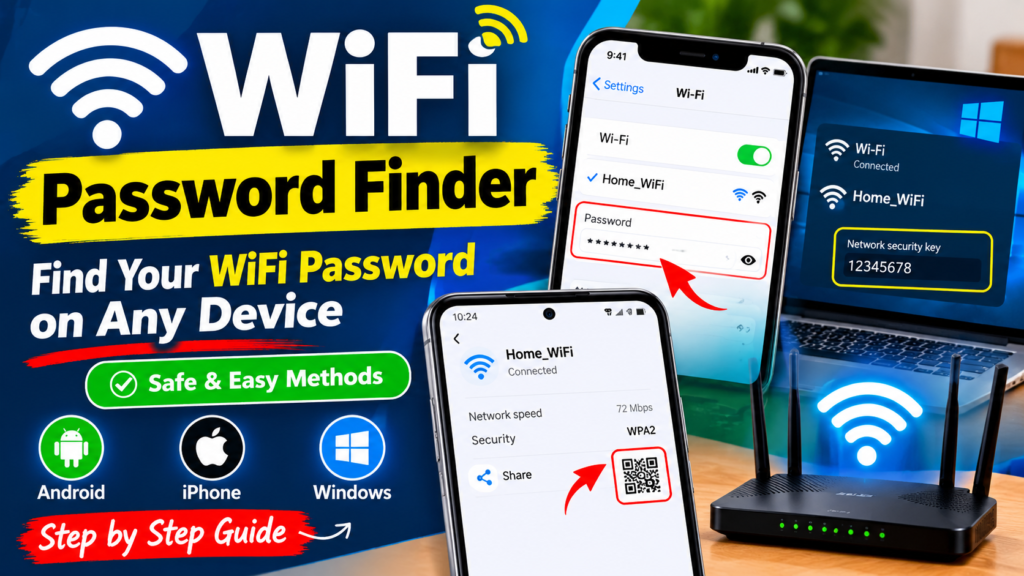
What Is a WiFi Password Finder?
A WiFi Password Finder is a tool, feature, or method used to view or recover a WiFi password that you are authorized to access. Depending on your device, it may display saved network information, generate a QR code for sharing a connection, or help you access your router’s settings.
It is important to understand that legitimate password finders cannot automatically reveal every nearby network’s password. They generally work with saved credentials, accessible network settings, or information provided by the network owner.
How to Find a WiFi Password on Android
If your Android phone is already connected to a WiFi network, you may be able to view or share its password through the settings.
Follow these steps:
- Open Settings on your Android phone.
- Select WiFi, Network & Internet, or Connections.
- Tap the connected WiFi network.
- Select Share or the QR code option.
- Verify your identity if your phone requests authentication.
- View the password if your device displays it, or scan the QR code using a compatible device.
Menu names can vary depending on your phone manufacturer and Android version.
Tip: If the password is not displayed as text, the QR code may still let another compatible device connect to the network.

How to Find a WiFi Password on an iPhone
iPhones running supported versions of iOS allow users to view saved WiFi passwords.
- Open Settings.
- Tap WiFi.
- Select the information icon beside the network.
- Tap Password.
- Authenticate using Face ID, Touch ID, or your passcode.
- View or copy the password if the option is available.
For a previously saved network, check the Edit option in the WiFi settings, if available, to access saved network details.
How to Find a WiFi Password on Windows 10 or Windows 11
Windows provides built-in options for checking saved WiFi credentials, although the exact steps depend on your Windows version and connection settings.
Method 1: Using Windows Settings
- Open Settings.
- Navigate to Network & Internet.
- Open the WiFi settings and look for the network properties or saved network options.
- Check whether your Windows version offers a WiFi password display option.
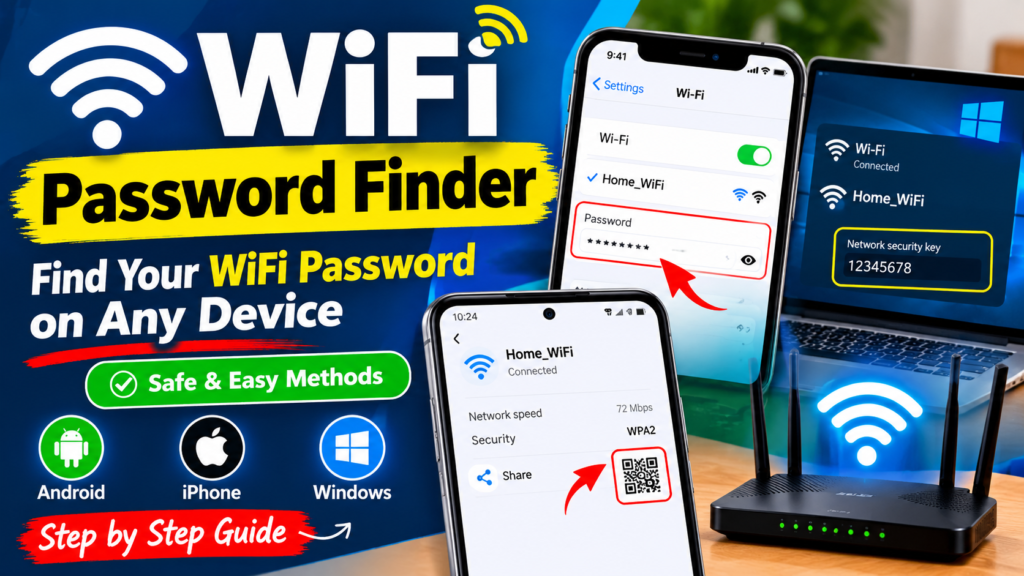
Method 2: Using Command Prompt
On a Windows computer where you are authorized to access saved wireless profiles:
- Open Command Prompt.
- Enter this command to list saved WiFi profiles:
netsh wlan show profiles
- Identify the name of your own saved network.
- Enter the following command, replacing
YourWiFiNamewith the exact network name:
netsh wlan show profile name="YourWiFiName" key=clear
- If Windows has saved the password and your permissions allow it, look for Key Content in the output.
If no password appears, the profile may not contain a retrievable password, or your account may lack the necessary permissions.
How to Find Your WiFi Password Through Your Router
If you cannot find the password on your phone or computer, your router may provide another option.
- Check the label on your router for t