How to Enable RGB Edge Lighting on Any Android Phone
Introduction
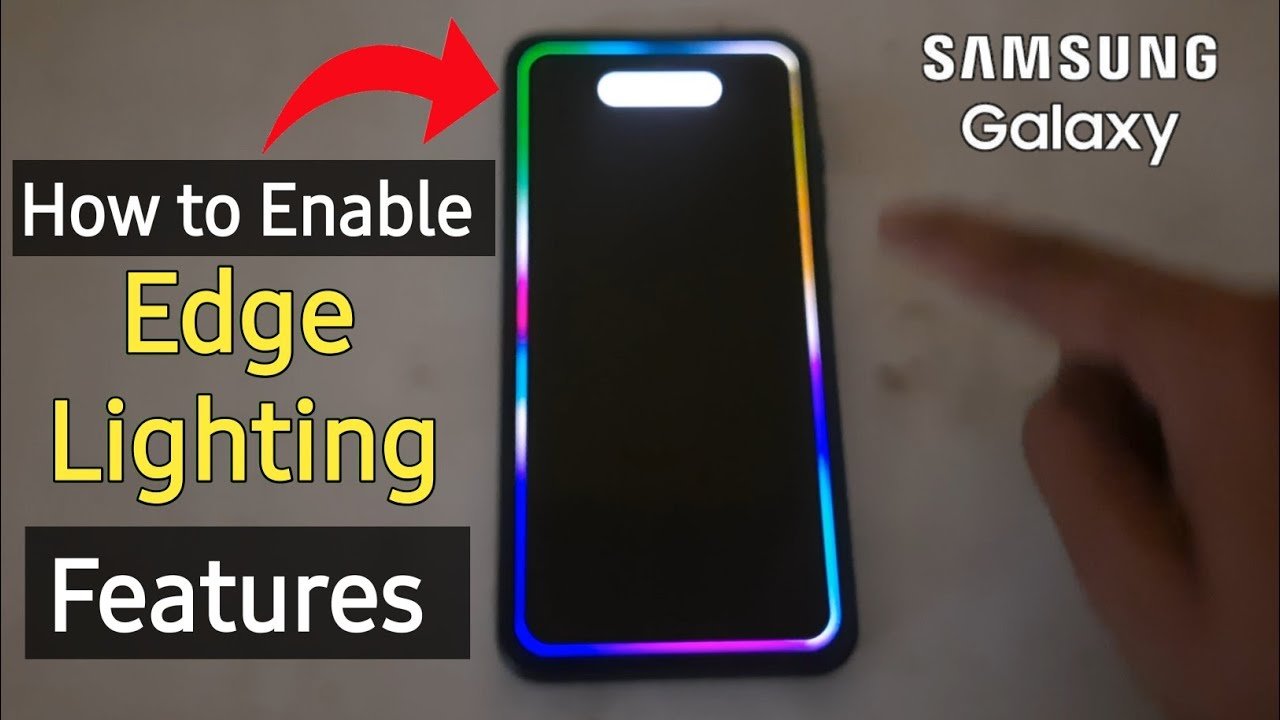
Smartphones have become an important part of our daily lives, and many users love customizing their devices to make them look unique and attractive. One of the most popular customization features is RGB Edge Lighting. This feature creates colorful light effects around the edges of your phone screen whenever you receive notifications, calls, or messages.
Many premium Android smartphones come with built-in edge lighting features, but if your phone does not support it, don’t worry. You can still enable RGB edge lighting using third-party applications available on the Google Play Store.
In this guide, we will explain what RGB edge lighting is, its benefits, and how you can enable it on almost any Android phone.
What Is RGB Edge Lighting?
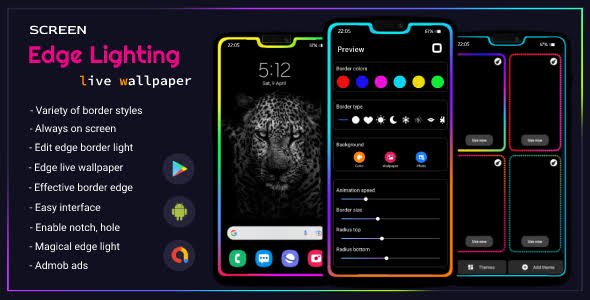
RGB Edge Lighting is a visual notification effect that displays colorful lights around the edges of your smartphone screen. The lighting can appear when:
- You receive a phone call
- A new message arrives
- Social media notifications are received
- Charging starts or finishes
- The screen is locked
RGB stands for Red, Green, and Blue, which are the primary colors used to create millions of color combinations on digital displays.

Benefits of RGB Edge Lighting
1. Attractive Appearance
RGB edge lighting gives your smartphone a premium and modern look. The colorful effects can make your device stand out from others.
2. Easy Notification Alerts
Instead of constantly checking your phone, edge lighting helps you identify notifications instantly through visual effects.
3. Personalization
You can customize colors, animations, speed, and lighting styles according to your preferences.
4. Works on Most Android Phones
Even if your phone does not have a built-in edge lighting feature, various Android apps can provide similar functionality.
5. Better Visibility
When your phone is lying face-up on a table, colorful lighting makes incoming notifications easier to notice.
Requirements Before Enabling RGB Edge Lighting
Before you start, make sure your phone meets the following requirements:
- Android smartphone running Android 6.0 or later
- Internet connection to download apps
- Permission to display over other apps
- Notification access enabled
- Sufficient battery charge
Most modern Android devices support RGB edge lighting applications without any major issues.
How to Enable RGB Edge Lighting on Any Android Phone
Method 1: Using an Edge Lighting App
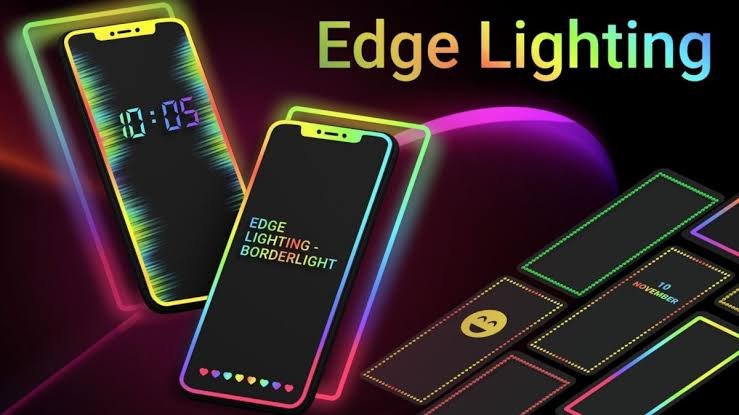
The easiest way to enable RGB edge lighting is by installing an edge lighting application.
Step 1: Open Google Play Store
Launch the Google Play Store on your Android phone.
Step 2: Search for Edge Lighting Apps
Search using keywords such as:
- RGB Edge Lighting
- Edge Lighting Colors
- Border Light Live Wallpaper
- Edge Notification Lighting
Choose an app with good ratings and positive user reviews.
Step 3: Install the App
Download and install the application.
Step 4: Grant Permissions
Most apps require:
- Notification access
- Display over other apps
- Accessibility permissions
Allow the necessary permissions for proper functionality.
Step 5: Customize Lighting Effects
Open the app and customize:
- RGB colors
- Animation speed
- Lighting width
- Corner radius
- Glow effect
- Notification-specific colors
Step 6: Activate Edge Lighting
Enable the main toggle button and lock your screen to test the effect.
Method 2: Using Always-On Display Apps
Some Android devices support Always-On Display (AOD) applications.
How It Works
These apps combine:
- Clock display
- Notification icons
- RGB edge lighting effects
This method is especially useful for phones with AMOLED or OLED displays because they consume less battery while displaying edge lighting.
Method 3: Using Live Wallpaper Edge Lighting
Another option is using live wallpaper applications that create RGB borders around the screen.
Features Include
- Animated rainbow effects
- Neon border lighting
- Custom color patterns
- Battery percentage display
- Charging animations
These apps work continuously while your wallpaper is active.
Best Settings for RGB Edge Lighting
For the best visual experience, try these settings:
Color Mode
Use:
- Rainbow RGB effect
- Blue and purple gradients
- Neon green glow
- Multi-color transitions
Animation Speed
Set medium speed for a balanced appearance. Very fast animations may become distracting.
Edge Width
A width of 8–15 pixels generally provides the best visibility.
Brightness
Avoid maximum brightness to reduce battery consumption.
Does RGB Edge Lighting Drain Battery?
Yes, RGB edge lighting can consume additional battery power, but the impact depends on several factors:
Higher Battery Usage
- Continuous lighting
- Maximum brightness
- Live wallpaper effects
- LCD displays
Lower Battery Usage
- AMOLED screens
- Notification-only lighting
- Reduced brightness
- Short animation duration
If battery life is important to you, use edge lighting only for notifications instead of keeping it active all the time.
Common Problems and Solutions
Edge Lighting Not Working
Solution:
- Restart the app
- Re-enable permissions
- Check notification access settings
Notifications Not Triggering Lights
Solution:
- Disable battery optimization for the app
- Allow background activity
Lighting Stops Automatically
Solution:
Some Android systems restrict background applications. Add the app to the battery optimization exception list.
App Crashes Frequently
Solution:
- Update the application
- Clear cache
- Reinstall the app
Tips for Better RGB Edge Lighting Experience
Use AMOLED-Friendly Colors
Dark backgrounds with bright RGB effects look more attractive and save battery.
Avoid Too Many Effects
Using excessive animations may slow down older devices.
Customize Per App
Some edge lighting applications allow different colors for:
- WhatsApp notifications
- Facebook alerts
- Instagram messages
- Phone calls
This makes notifications easier to identify.
Keep Apps Updated
Developers frequently release updates that improve performance and compatibility.
Is RGB Edge Lighting Safe?
Yes, RGB edge lighting applications are generally safe when downloaded from trusted sources such as the Google Play Store. However:
- Check user reviews
- Verify permissions
- Avoid unknown APK files
- Download from reputable developers
Always review what permissions an application requests before installing it.
Conclusion
RGB Edge Lighting is an excellent way to enhance the appearance of your Android smartphone while making notifications more visible. Even if your device does not include this feature by default, you can easily enable it using edge lighting apps, Always-On Display applications, or live wallpaper solutions.
With proper customization, you can create stunning RGB effects that give your phone a premium look without requiring root access. Just remember to choose trusted applications, manage battery usage wisely, and customize the lighting according to your personal style.
Frequently Asked Questions (FAQ)
Can I enable RGB edge lighting on any Android phone?
Yes, most Android phones can use RGB edge lighting through third-party applications available on the Google Play Store.
Does RGB edge lighting require root access?
No. Most edge lighting apps work without rooting your Android device.
Which display type is best for RGB edge lighting?
AMOLED and OLED displays provide the best visual experience and better battery efficiency.
Is RGB edge lighting free?
Many apps offer free versions with basic features, while premium versions provide additional customization options.
Can RGB edge lighting work while the screen is off?
Yes, many edge lighting apps can display effects on the lock screen or through Always-On Display features.
Does RGB edge lighting damage the screen?
No, normal use of RGB edge lighting does not damage modern smartphone displays.
Why is RGB edge lighting not showing notifications?
This usually happens because notification access or overlay permissions are disabled. Enable the required permissions in your phone settings.